Pinning a Task List item to a drawing
In Formis, any item in a Task List widget can be pinned to the exact spot on a drawing where it applies. Type the item, tap the pin icon, choose the drawing, and tap the location. The pin stays linked to that item and that drawing revision, so anyone who opens the item can see precisely where the issue is.
Pinning is how a punch item, a safety hazard, or any location-specific checklist item stops being a vague description ("outlet by the east stair") and becomes a point on a sheet that everyone can find.
Where pinning is available
Pinning is a setting on the Task List widget, not a separate feature. A form designer turns on Pin to drawing for a form's Task List in the form designer.
- The Punch list and Safety observation starter templates come with pinning turned on.
- Any custom form with a Task List can turn it on.
- If pinning is off for a form, the pin icon on the capture bar appears greyed out, with a note that it can be enabled in the designer.
The drawing you pin to has to be in the project's document register. If you don't see the sheet you need, see Set up the document register.
Pinning a new item
- Type the item's description in the capture bar at the top of the Task List.
- Tap the pin icon next to it (not the + button).
- Choose the drawing.
- Tap the exact spot on the sheet.
The item is created with the pin already attached, and the description you typed carries over, so you don't retype it.
Pinning an existing item
Open the item and use the pin control in its detail panel. Choose the drawing and tap the spot, the same way as above.
The pin card: open, move, or remove
Once an item is pinned, its detail panel shows a pin card: a thumbnail of the drawing cropped around the pin, with the sheet number, revision, and page underneath.
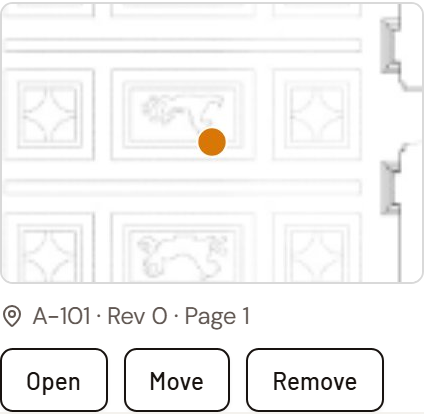
From the pin card you can:
- Open the drawing at the pin's location to see the full sheet around it.
- Move the pin to a different spot.
- Remove the pin. The item itself stays; only its location is cleared.
A pin is tied to the specific drawing revision it was placed on.
Opening a pinned item from the drawing
When you open a drawing, every pinned item shows as a pin on the sheet. A pin with a small camera badge has photos attached.
Tap a pin to open that item in a panel. On a computer or tablet, the panel slides out from the right; on a phone, it opens as a sheet from the bottom that you can drag up to full height. The drawing stays where it is behind the panel, at the same zoom, and you can keep panning around the sheet while the panel is open.
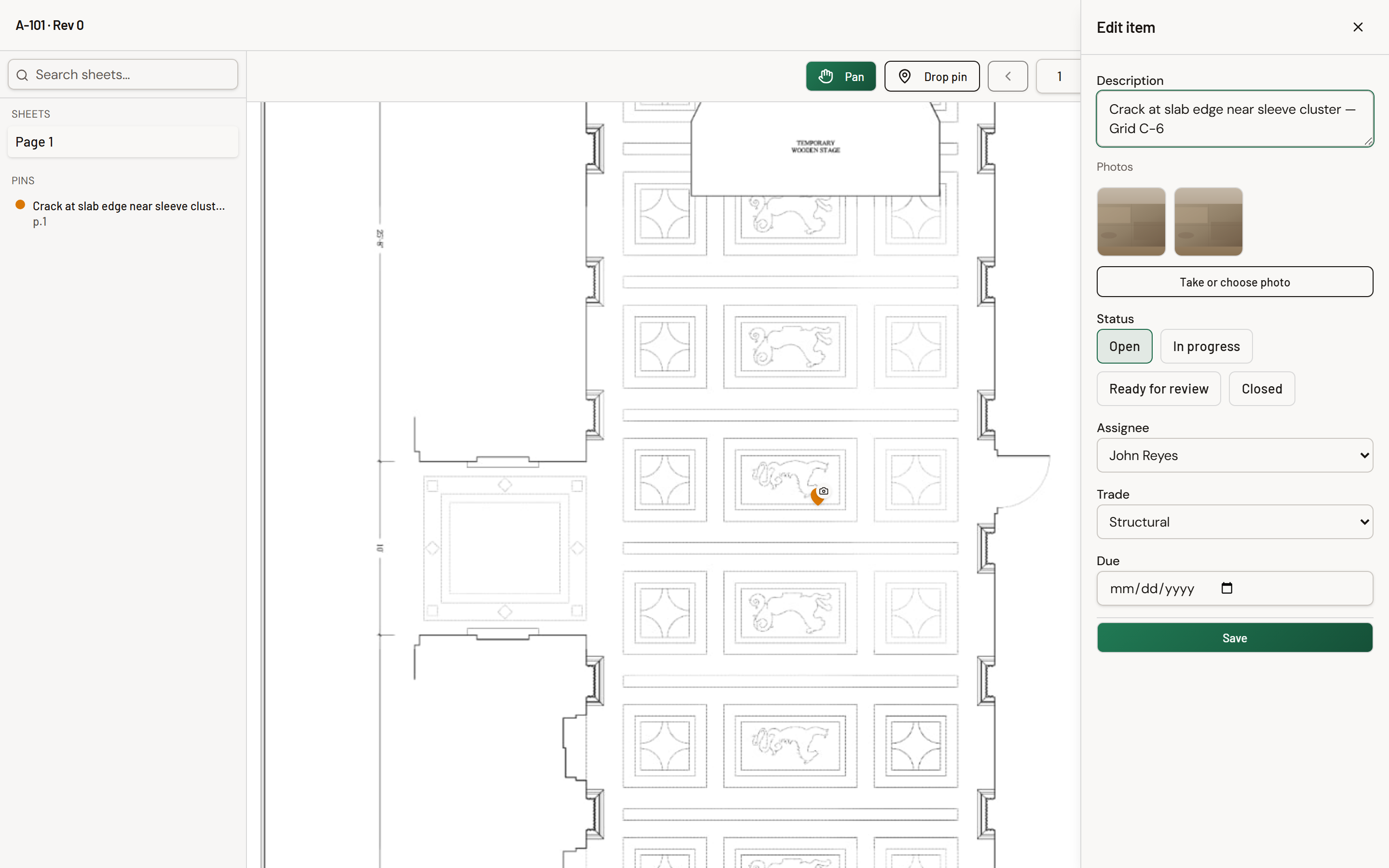
In the panel you can:
- see and edit the item's details, then tap Save,
- view its photos: tap a thumbnail to open it full-size, or add a new photo,
- tap another pin on the drawing to switch the panel to that item, which makes walking a list sheet by sheet fast.
Close the panel with the X in its top-right corner. If you've made changes you haven't saved, Formis asks before discarding them.
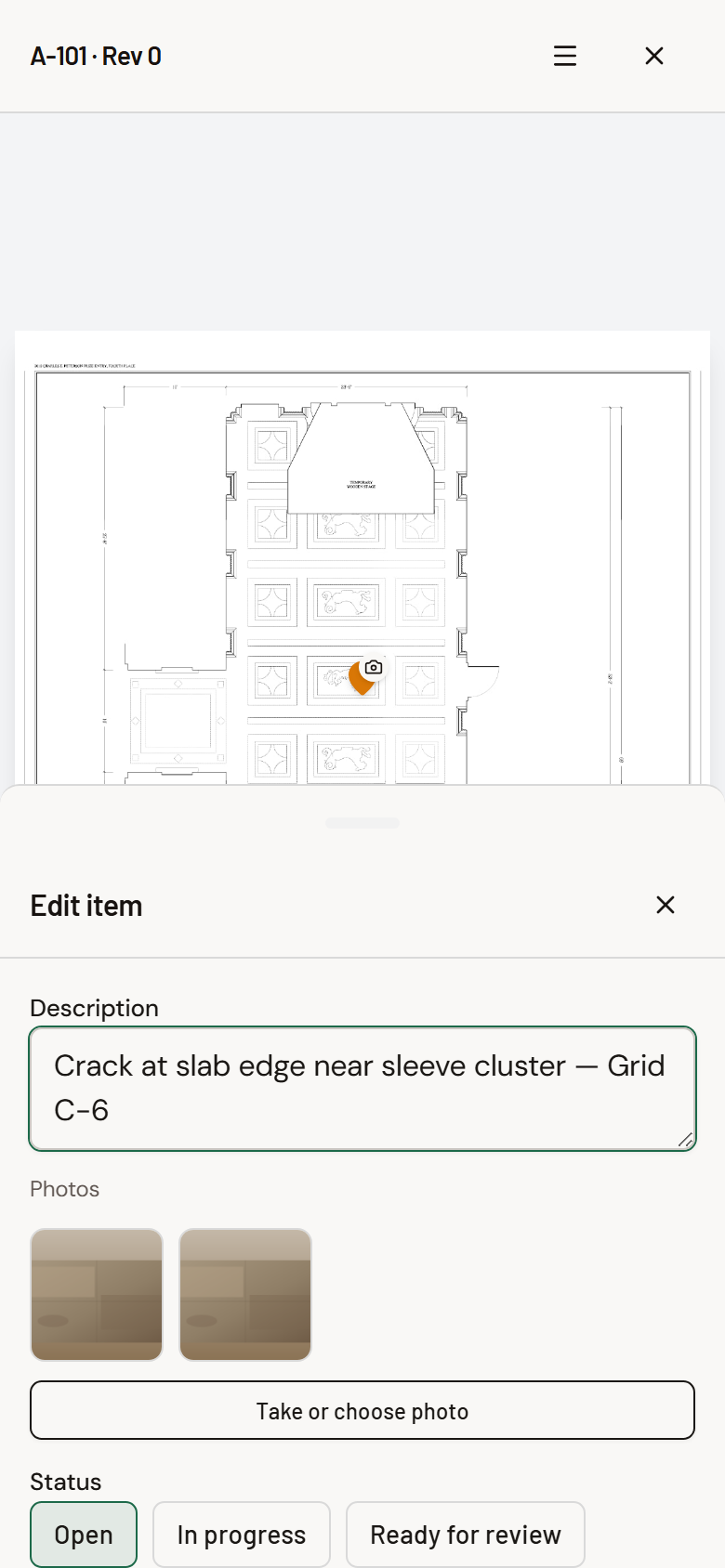
Pins and photos
When you attach a photo to a pinned item, Formis records which drawing and which spot the pin was on at that moment. That record is permanent: if the pin is moved later, the photo still shows where the item was when the photo was taken. See Adding photos to a Task List item.
On a phone
The drawing viewer works the same way on a phone: pinch to zoom, drag with one finger to pan, and tap to drop the pin. See Using Task Lists on your phone.
Common questions
Can every Task List item be pinned? Only if the form's Task List has Pin to drawing turned on. It's a setting in the form designer. The Punch list and Safety observation starter templates ship with it on, and you can turn it on or off on any form.
What happens to an item if I remove its pin? Nothing else changes. The item keeps its description, status, assignee, and photos. Only the drawing location is cleared.
If a pin is moved, do old photos lose their location? No. Each photo keeps the drawing and location the pin had when that photo was attached.
Why can't I find my drawing when pinning? Pins go on drawings in the project's document register. If the sheet isn't there, or you don't have access to it, it won't appear in the picker.
Drawing: Historic American Buildings Survey, Library of Congress.