Reopening a Task List item
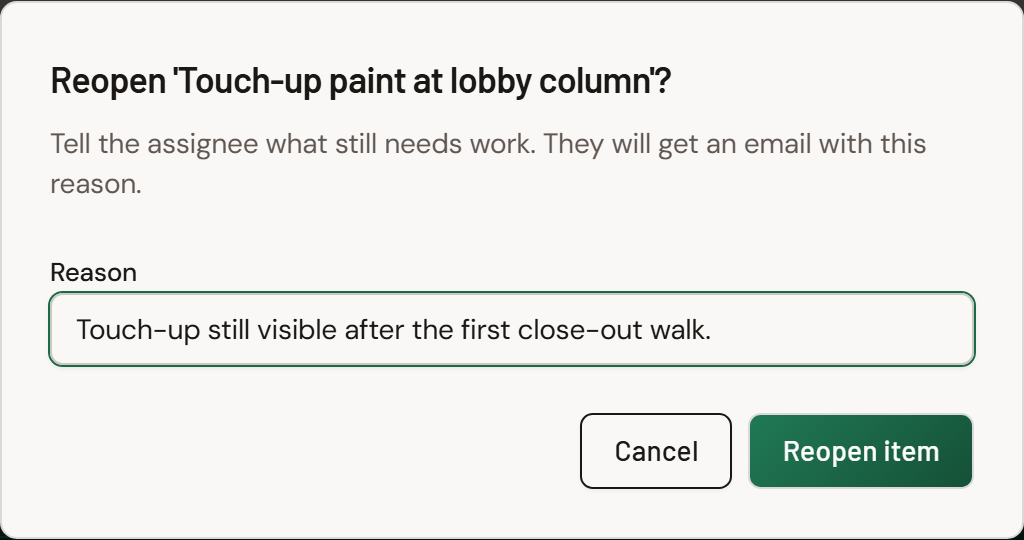
A closed item in a Formis Task List widget can be reopened by the person who created the submission, its current reviewer, anyone in the list's Managed by project roles, or a Tenant Admin. Open the closed item and tap Reopen, which is now its main button. If the form requires it, you'll be asked for a reason. The item goes back to Open, and its assignee gets an email with your note.
How to reopen an item
- Open the closed item. Reopen appears as the main button, in the spot where the status button normally is.
- If the form requires a reason, type what still needs fixing.
- Confirm.
The item returns to Open. Its close details are cleared, and its activity history keeps a record that it was reopened, by whom, and why.
When a reason is required
Asking for a reason is a setting on the Task List widget, Require a reason to reopen. When it's on, Reopen opens a dialog for your note. When it's off, the item reopens immediately. You'll find it in the form designer, in the Task List's settings.
How our starter templates are configured
Formis starter templates (Punch list, Safety observation, Action items) are ready-made forms built from the same Task List widget you can add to any form. Each one ships with its settings already chosen so you can use it right away. None of it is fixed: you can change any of these settings in the form designer, on a starter template or on your own form.
| Starter template | Require a reason to reopen |
|---|---|
| Punch list | On |
| Safety observation | On |
| Action items | Off |
Who can reopen
You can reopen an item if you are:
- the person who created the submission,
- the current reviewer, for example at closeout review,
- in one of the list's Managed by project roles on this project (a Task List setting; see Using Task Lists for how the starter templates set it), or
- a Tenant Admin.
Assignees can't reopen items, including their own. A company-wide Manager seat doesn't count on its own; your role on the project does.
Voided items can't be reopened. Voiding is for items that shouldn't exist at all, such as a duplicate. A voided item stays voided. Only the Managed by roles and Tenant Admins can void.
Who gets notified
If the item has an assignee, they get an email that includes your reason. Nobody else on the submission is notified. This happens on every form and isn't a setting you need to turn on.
What reopening does to the workflow
Reopening changes one item. It never moves the submission's workflow backward on its own.
- If the submission is still waiting on its items, it simply keeps waiting until the reopened item is closed again.
- If the submission is at closeout review, reopen the items that need work, then choose Revision Required. That's what sends the submission back to waiting. Revision Required stays greyed out until at least one item is reopened. See Task List statuses and the review workflow.
- If the submission has already been completed, reopening makes the list incomplete again so the work can be tracked, but it doesn't restart the workflow.
Common questions
Why don't I see a Reopen button? Reopen is available to the submission's creator, its current reviewer, the list's Managed by project roles, and Tenant Admins. It never appears on voided items.
Does the whole team get emailed when I reopen an item? No. Only that item's assignee is emailed, with your reason included.
Does reopening an item send the submission back for more work? Not by itself. At closeout review, reopen the items and then choose Revision Required.
Is there a limit to how many times an item can be reopened? No. An item can be reopened and closed as many times as the work requires.